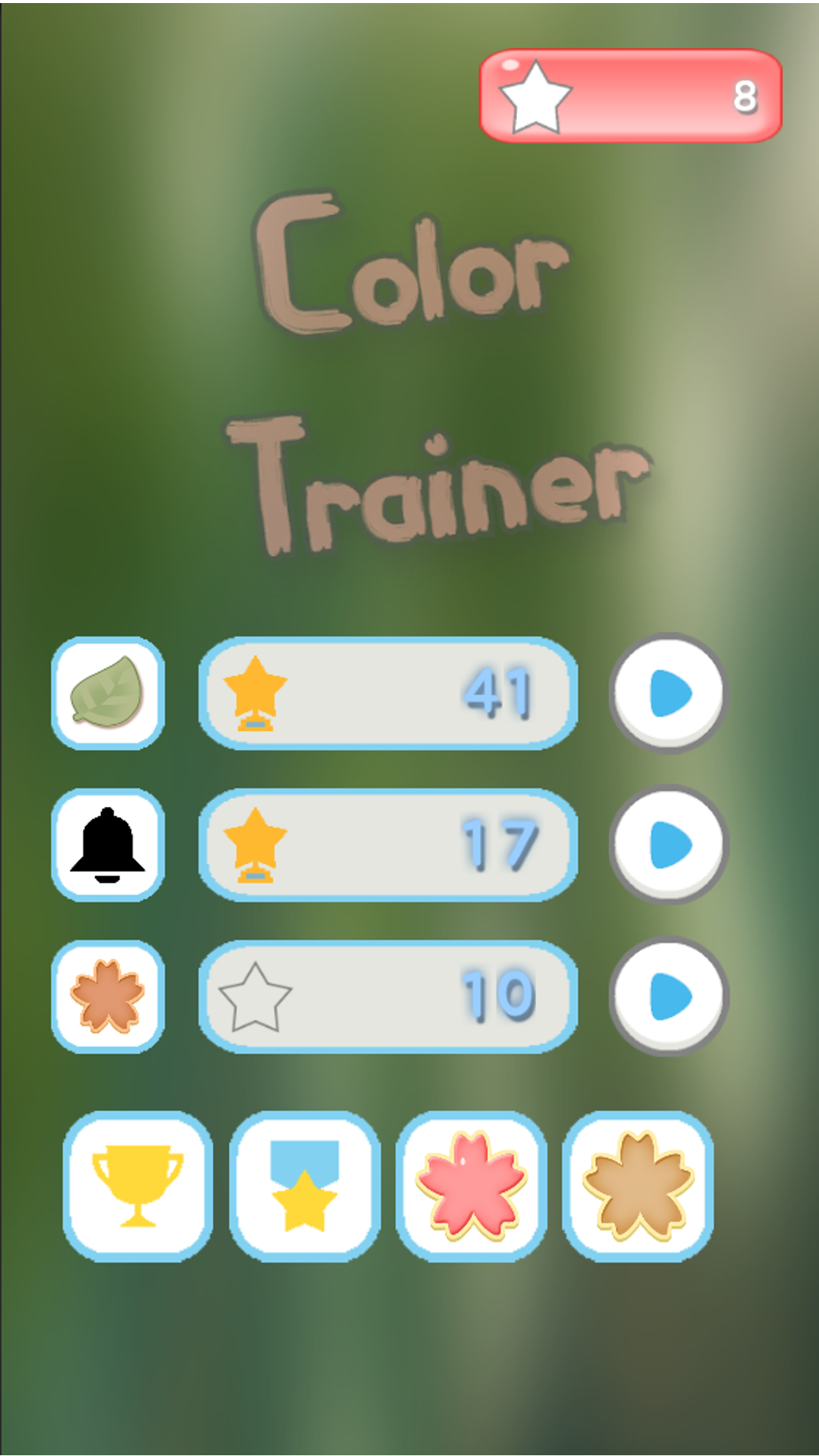
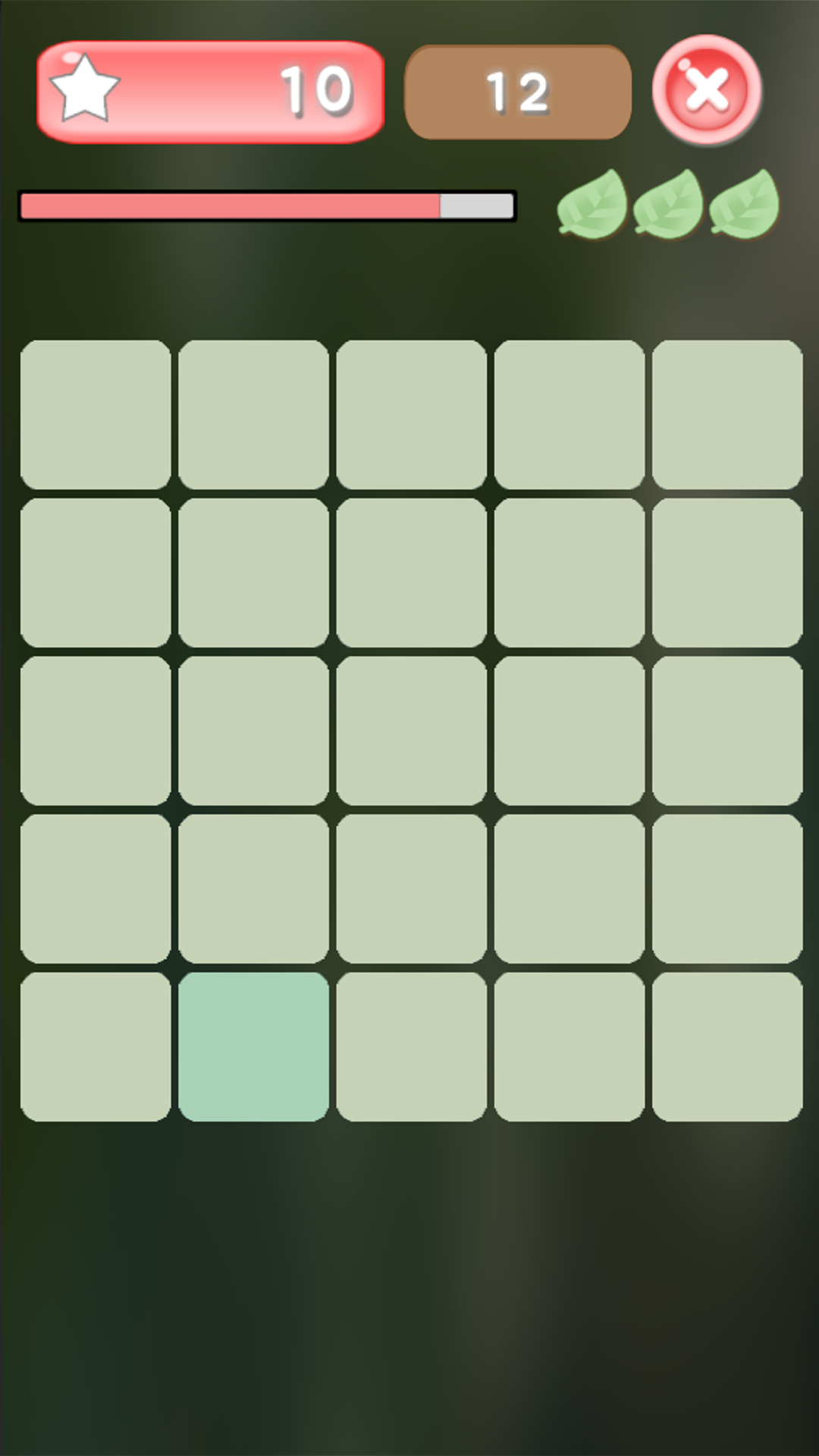
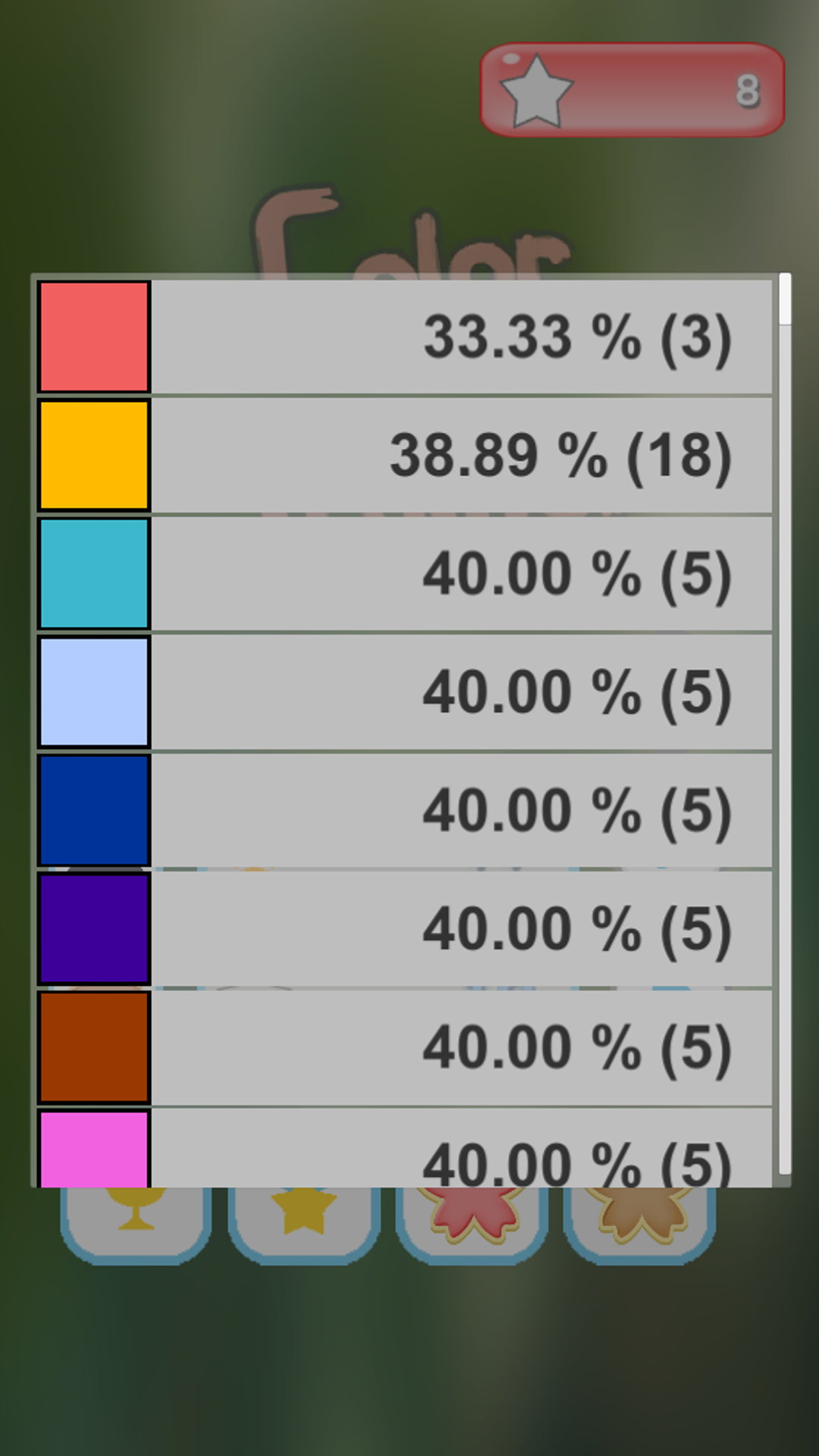
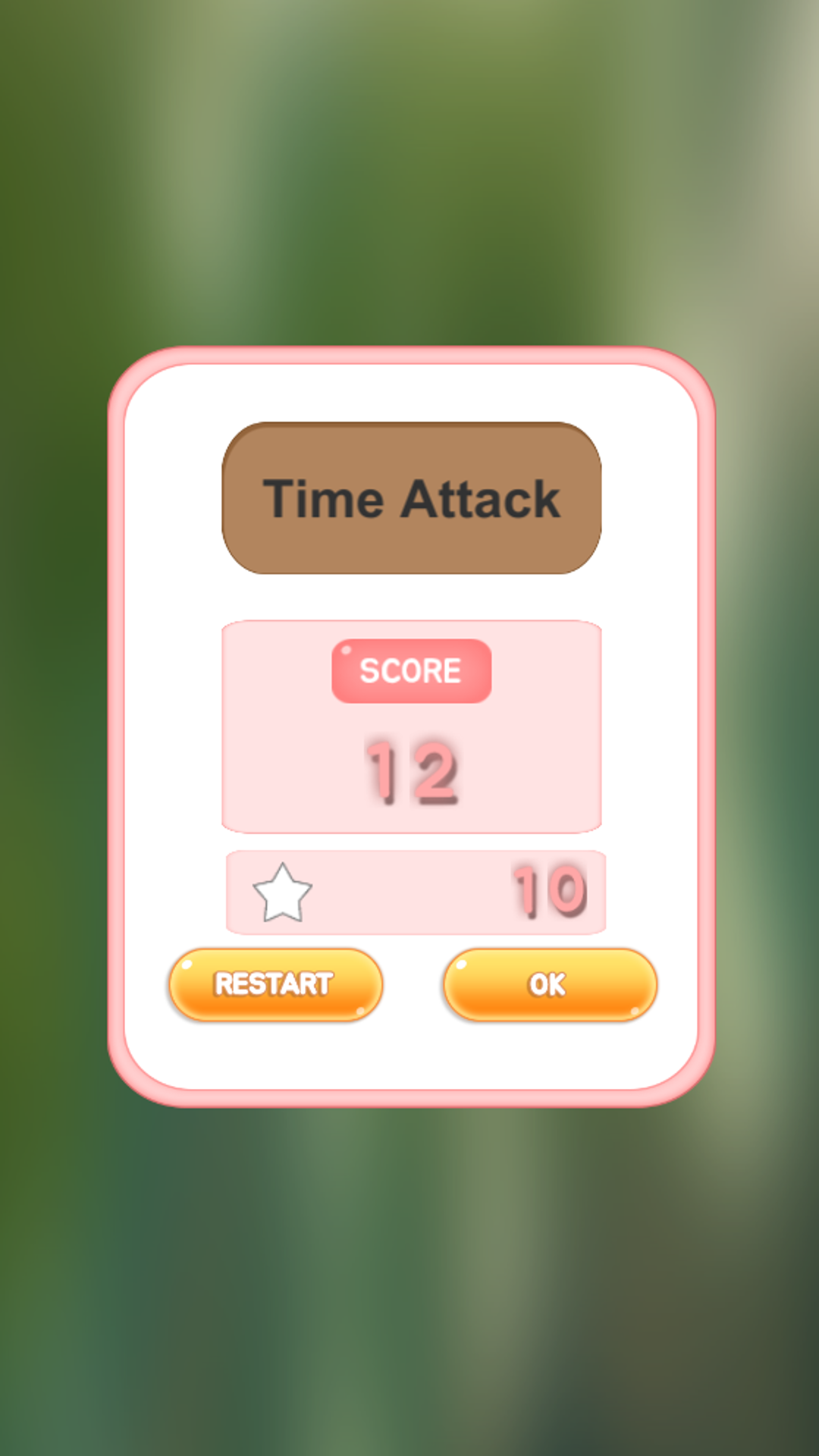
유니티를 이용하여 다른 색을 찾는 게임을 제작하였다.
[구현]
보드판
보드판의 크기를 최대 7*7로 설정하고 미리 객체를 생성하여 화면 밖으로 빼주었다.
  void InitStage()
  {
    map = new Cell[7, 7];
    for (int i = 0; i < 7; i++)
    {
      for (int j = 0; j < 7; j++)
      {
        map[i, j] = new Cell(CellType.BASIC);
        map[i, j] = map[i, j].InstantiateCellObj(m_CellPrefab);
        map[i, j].Move(20, 20);
        map[i, j].SetPos(i, j);
      }
    }
  }
스테이지를 구성할 때 생성된 객체를 SetActive를 통해 나타냈다 감추며 재사용하였다. (생성, 파괴 방지)
  void BuildStage(int row, int col)
  {
    m_row = row;
    m_col = col;
    ChooseColor();
    float initX = CalcInitX(col, 0.5f);
    float initY = CalcInitY(row, 0.5f);
    CameraAgent.instance.CamResize(Mathf.Max(row, col) + 0.2f);
    for (int i = 0; i < 7; i++)
    {
      for (int j = 0; j < 7; j++)
      {
        if (i < row && j < col)
        {
          map[i, j].Active(true);
          map[i, j].SetColor(colornum);
          map[i, j].Move(initX + j, initY + i);
        }
        else
        {
          map[i, j].Active(false);
        }
      }
    }
    SelectAnswer();
  }
이때 보드판에 보여지는 칸의 개수를 카메라로 조절하였다.
  public void CamResize(float num)
  {
    m_TargetCamera.orthographicSize = num / 2 / m_TargetCamera.aspect;
  }
이펙트
많은 양의 이펙트를 생성하는게 아니므로
시간을 지정해서 삭제되도록 하였다.
public class ParticleAutoDestroy : MonoBehaviour
{

  public float destroytime;

  void OnEnable()
  {
    StartCoroutine(CoCheckAlive());
  }

  IEnumerator CoCheckAlive()
  {
    while (true)
    {
      yield return new WaitForSeconds(destroytime);
      if (!GetComponent<ParticleSystem>().IsAlive(true))
      {
        Destroy(this.gameObject);
        break;
      }
    }
  }
}
폰트
BMFont를 이용하여 이미지 폰트를 만드려 했으나 오류가 나서 생성 불가.
https://snowb.org/ 해당 주소에서 설치 없이 이미지 폰트를 제작할 수 있다.
스크린샷에서 보는 것과 같이 이미지 폰트에서 세세하게 설정해주지 않으면 깨지는 현상이 있었다.
결국 TextMeshPro를 이용하여 그림자를 추가하는 방식을 채택하였다.
도전과제, 리더보드
GPGS를 통해 간편하게 추가가 가능했다.
설정 (효과음, 배경음)
효과음 관리는 SoundManager를 통해 관리하였으며 Slider와 연동되도록 하였다.
public enum Clip
{
  Correct = 0,
  Wrong = 1
}

public class SoundManager : MonoBehaviour
{
  public static SoundManager instance;
  public AudioClip[] sfxlist;
  public AudioSource sfx;
  public AudioSource bgm;

  void Awake()
  {
    if (SoundManager.instance != null)
    {
      Destroy(gameObject);
      return;
    }
    SoundManager.instance = this;
  }

  void Start()
  {
    bgm.volume = DataManager.bgm;
    sfx.volume = DataManager.sfx;
  }

  public void soundplay(Clip n)
  {
    sfx.PlayOneShot(sfxlist[(int)n]);
  }
}
public class Sfxslider : MonoBehaviour
{
public Slider slider;
public AudioSource sfx;
void Start()
{
slider.onValueChanged.AddListener(ListenerMethod);
slider.value = DataManager.sfx;
sfx.volume = DataManager.sfx;
}
void ListenerMethod(float value)
{
sfx.volume = slider.value;
DataManager.sfx = slider.value;
}
}세이브/로드
Json을 이용하여 기기 내부에 저장하도록 하였다. (보안에는 취약하지만 편함)
public class DataManager : MonoBehaviour
{
  public static DataManager instance;

  public int money;
  public int normal_score;
  public int timeattack_score;
  public static float sfx;
  public static float bgm;
  public int[] color_cnt;
  public int[] color_success;
  public int[] color_fail;

  public PlayerData playerData;

  void Awake()
  {
    LoadPlayerDataToJson();
  }

  void Start()
  {
    if (DataManager.instance != null)
    {
      Destroy(gameObject);
      return;
    }
    DataManager.instance = this;
  }

  void OnApplicationPause(bool pause)
  {
    if (pause)
    {
      SavePlayerDataToJson();
    }
  }

  void OnApplicationQuit()
  {
    SavePlayerDataToJson();
  }

  [ContextMenu("To Json Data")]
  public void SavePlayerDataToJson()
  {
    playerData.money = money;
    playerData.normal_score = normal_score;
    playerData.timeattack_score = timeattack_score;
    playerData.bgm = bgm;
    playerData.sfx = sfx;
    playerData.color_cnt = color_cnt;
    playerData.color_success = color_success;
    playerData.color_fail = color_fail;
    string jsonData = JsonUtility.ToJson(playerData, true);
    string path = Application.persistentDataPath + "/playerData.json";
    File.WriteAllText(path, jsonData);
  }

  [ContextMenu("From Json Data")]
  public void LoadPlayerDataToJson()
  {
    string path = Application.persistentDataPath + "/playerData.json";
    if (!File.Exists(path))
    {
      money = 0;
      normal_score = 0;
      timeattack_score = 0;
      sfx = 0.25f;
      bgm = 0.3f;
      color_cnt = new int[98];
      color_success = new int[98];
      color_fail = new int[98];
      return;
    }
    string jsonData = File.ReadAllText(path);
    playerData = JsonUtility.FromJson<PlayerData>(jsonData);
    money = playerData.money;
    normal_score = playerData.normal_score;
    timeattack_score = playerData.timeattack_score;
    bgm = playerData.bgm;
    sfx = playerData.sfx;
    color_cnt = playerData.color_cnt;
    color_success = playerData.color_success;
    color_fail = playerData.color_fail;
  }

  [System.Serializable]
  public class PlayerData
  {
    public int money;
    public int normal_score;
    public int timeattack_score;
    public float bgm;
    public float sfx;
    public int[] color_cnt;
    public int[] color_success;
    public int[] color_fail;
  }
}
동영상
Unity recorder를 이용하여 쉽게 촬영하고 저장할 수 있었다.
[미흡한 점]
코드
객체가 각자의 역할을 하도록 코드 분산하기.
BuildStage() 내에서 ChooseColor()와 SelectAnswer()가 추가되어있는데 한 가지 역할만 하도록 하기.
Property를 이용하기
Singleton 남발하지 않기
캔버스
단일씬을 사용하여 Main, InGame, GameOver로 캔버스를 나누어 GameManager를 통해 SetActive로 관리하였다.
정적캔버스와 동적캔버스 나누기
[후기]
아직 미흡한 점이 많지만 조금씩 새로운 방법을 찾다 보면 더욱 나은 코드를 작성할 수 있을 것 같다.
[플레이스토어]
https://play.google.com/store/apps/details?id=com.cbkpar.ColorTrainer
컬러 트레이너 - Google Play 앱
색이 다른 하나를 찾아보세요! 어떤 색에 약한지 분석 하여 알려줍니다.
play.google.com
'이것저것' 카테고리의 다른 글
| [DirectX9] 라그나로크 모작 (0) | 2022.11.06 |
|---|---|
| [MFC] 엔터더건전 에디터 (0) | 2022.07.20 |
| [API] 메이플스토리 모작 (0) | 2022.06.28 |
| [도넛 2048] 2048 게임 제작 (Unity) (0) | 2022.02.15 |
| [그림판] RLE 알고리즘 효율성 테스트 (0) | 2021.10.13 |